Nuvio Setup
Nuvio is a streaming app available on Android, Android TV, Google TV, Fire TV, and iOS beta. Your account syncs addons, profiles, and collections across the devices you sign into.
Prefer to watch instead of read? See the video walkthrough — it covers this whole flow end-to-end.
Step 1 — Create your account
- Go to nuvioapp.space and click Login
- Under "Need an account?" click Create one
- Or use the direct signup link: nuvioapp.space/account/signup
- Enter your email address and a password
- Click Create account
You'll land in the Nuvio account dashboard.
Privacy tip
Consider using an anonymous email (e.g. Proton Mail) when registering since Nuvio is a third-party app.
Step 2 — Install AIoMetadata
Before importing collections, install the AIoMetadata addon with the correct AIoMetadata config. For example, if you're using the Horror collection, make sure you're using the Horror AIoMetadata config. If the addon is not installed first, collection catalogs may not show up and the import may not load correctly.
- Go to nuvioapp.space and sign in
-
Open the Account tab

-
In the sidebar, click Addons
-
Install the AIoMetadata addon for the collection setup you want to use

If you have not created your AIoMetadata addon yet, follow the AIoMetadata guide first, then come back here.
Step 3 — Import collections
Collections let you browse content by curated category — MCU chronological order, DC, Star Wars, anime breakdowns, and more. You can add these alongside your existing collections, or replace everything with the complete setup.
First, download the collection .json file you want:
Then import it on the Nuvio website:
- Go to nuvioapp.space and sign in.
-
In the top navigation, click Account.
-
In the account sidebar, click Collections.
-
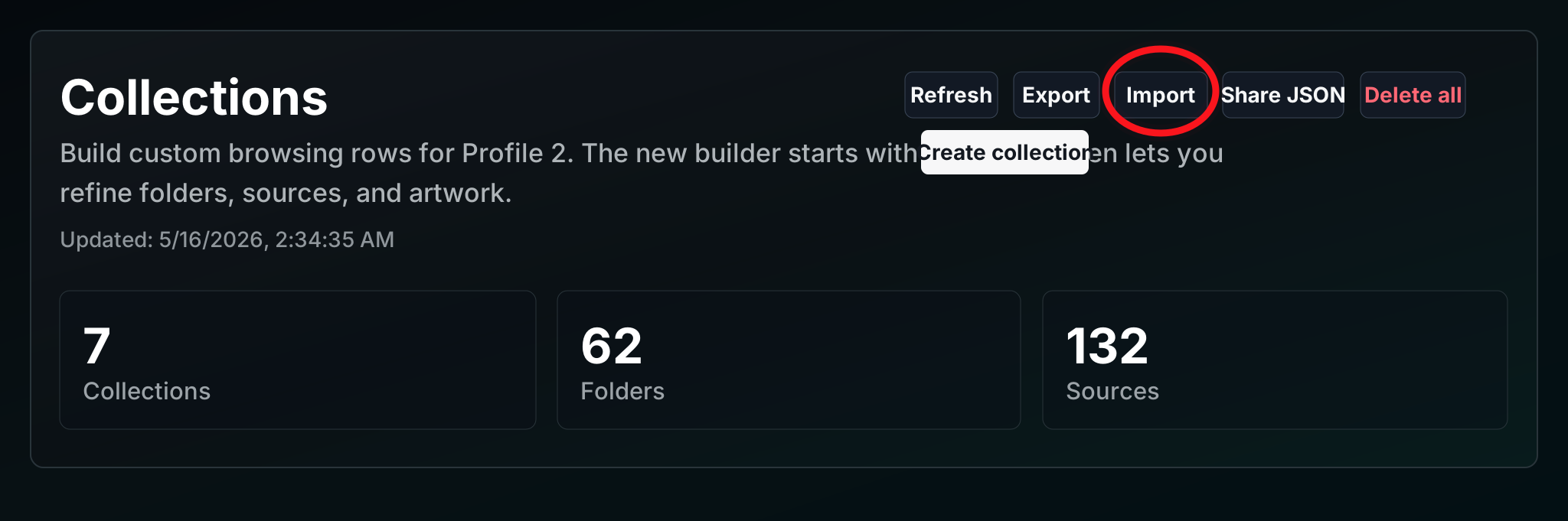
On the Collections page, click Import, then choose File.
-
Select the collection
.jsonfile you downloaded in the first step. - Pick Overwrite or Add New (read the warning below first).
- Click Save to apply the changes.
Overwrite vs. Add New — read this first
- Overwrite — Replaces all your current collections with this setup. Use this if you want the exact layout shown in the video.
- Add New — Keeps what you already have and adds these collections on top.
Step 4 — Sign in on your device
- Open the Nuvio app — it will show a QR code on screen
- On your phone or browser, go to nuvioapp.space/account and log in
- Scan the QR code shown on your TV
- Click the link it generates, re-enter your credentials, then click Sign in & Approve TV
- Your TV will log in automatically
Open the Nuvio app on mobile, or use nuvioapp.space for account, profile, and addon management.